Google Sheets picker migration
Sheetlabs allows you to import data from Google Sheets, and to keep it automatically updated. Google have recently made changes here that may require some action from you.
If you use Sheetlabs to pull data from Google Sheets and have enabled automatic updates, then you will need to follow the steps below. If you do not do this by 2026-10-01, then automatic syncing of your Google Sheets will no longer work.
Once you complete the one-off set of steps below, there is no loss of functionality or change in behaviour between Sheetlabs and Google.
Migration steps
Step 1
If you are affected by the changes, you will see a banner at the top of the screen when you login to Sheetlabs. Click the 'Reconnect now' button to proceed.

Step 2
The first step involves reconnecting your Google Drive to Sheetlabs. Click the 'Connect Google Drive' button and follow the steps.

If you do not see this banner, don't worry, it just means you've already done it previously.
Step 3
Click the 'Select all' button. Then click 'Reconnect selected'.
Note: You can reconnect up to 50 sheets at a time. If you have more than 50, then you'll able to repeat the process for the next 50, and so on, until you're done.

Step 4
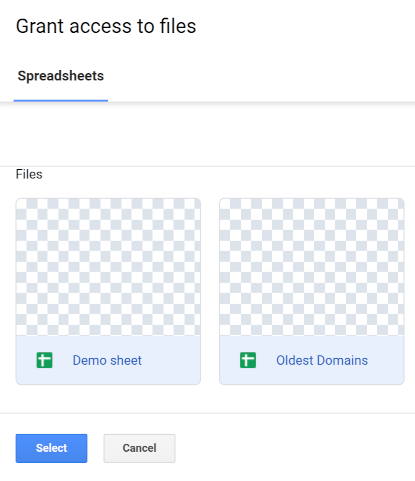
A Google popup will open, asking you to grant access to your specific Google Sheets.
You should select all the sheets in the popup. Do this by clicking once on the first sheet, and then whilst holding down shift, clicking on the last sheet.
Click 'Select' to confirm your choice.
Step 5
Sheetlabs will then reconnect your Google Sheets to Sheets. This could take a couple of minutes if you have a large number of them.
Once complete, you will see a confirmation of how many sheets have been reconnected and the status of each:

Step 6
If you have reconnected all of your sheets, then you'll see a green banner indicating that you're done:

If you still have more sheets to reconnect, then you will see a list of additional sheets to reconnect. You can repeat the process from step 3 onwards.
FAQ
Why has Google made these changes?
The changes from Google are designed to improve the security of your files in Google Drive. Historically, when you've enabled Sheetlabs to access your Google sheets, you've been granting Sheetlabs access to all of your sheets (even if Sheetlabs never accessed those other than the ones you asked to sync). This is overkill. The changes from Google mean that you'll need to grant access to specific files via their 'Picker', rather than all files.
Can you perform this migration for me?
Sadly not. The change requires you to re-establish the connection between Google and Sheetlabs, so it needs to be performed a person logged into your Google account.
What happens if I don't follow the steps?
If you do nothing, then the old syncing mechanism between Google and Sheetlabs will cease to function on 2026-10-01. This means that any sheets with automatic updates enabled will cease to be automatically updated after this date. You can, of course, complete the migration after this time.
How can I get help?
Please contact support@sheetlabs.com